Pen Scanner Troubleshooting & Accuracy: How to Fix OCR Errors, Speed & Calibration
Short answer: To fix pen scanner OCR errors, hold the pen at about 70 degrees (60 to 80 is the usual range), maintain a smooth, steady glide across the text line, and ensure adequate lighting without glossy page glare. For connected pens, verify Bluetooth connection quality and select the correct scan language in settings.

Key takeaways
- Most pen scanner errors come from hand motion, pen angle, lighting or the wrong language setting, not from a faulty pen.
- Start each scan on blank paper just before the first letter, and glide at a steady, highlighter-like pace.
- Glossy paper, tight book gutters and very small or very large type are the usual trouble spots.
- Connected pens add a second layer of problems, such as Bluetooth drop-outs, that standalone pens do not have.
- If errors continue after the fixes below, check for a dirty tip, update the pen's software and contact the maker's support.
How do you fix pen scanner errors quickly?
To fix most pen scanner errors, check your angle, speed, lighting, language setting and connection, in that order. Work through the steps below, testing after each change on the same line of text.
- Pick a line of clean, black-on-white text in a normal font size and scan it as your test.
- Hold the pen at a steady angle (see the angle section below) with both guide points flat on the page.
- Start about 1/4 inch before the first letter, on blank paper.
- Glide at an even speed without stopping, and lift off after the last letter.
- Move to better light and angle the page away from any bright overhead lamp.
- Check that the scan language in the pen or its companion app matches the text.
- For a connected pen, confirm it is paired and, if needed, try a USB connection.
- Clean the optical tip gently, then scan the test line again.
- If the test line scans well but your real page does not, the problem is the page, so use the paper tips below.
New to pen scanning? Our pen scanner introduction covers the basics first.
The Optical Physics of Handheld OCR Scanning
Unlike flatbed scanners that capture a static, motionless document beneath a moving lamp, a pen scanner uses a high-speed micro-camera capturing between 100 and 200 image frames per second as your hand sweeps across the page.
The pen’s internal DSP (Digital Signal Processor) continuously calculates optical flow vectors, stitching overlapping microscopic frame slices into a continuous horizontal text strip before running optical character recognition. When scan accuracy drops from 99% to 80%, the cause is almost never a defective software algorithm—it is almost always physical micro-motion inconsistency.
The Golden Angle: Pitch, Yaw & Roll Alignment
Achieving flawless 99%+ OCR accuracy requires maintaining the optical sensor within its optical sweet spot:
Optimal Pitch (Tilt Angle): Hold the pen at an angle of 60° to 80° relative to the paper surface. Tilting too far backward (below 50°) lifts the front optical lens off the paper, blurring focus. Holding the pen vertically perpendicular (90°) can cause the guide roller to skip.
Neutral Roll (Wrist Rotation): Ensure both left and right guide plastic contact points rest evenly against the paper. Twisting your wrist rotates the camera sensor diagonally, skewing character baseline alignment.
Perpendicular Tracking (Yaw): Guide the pen straight along the printed baseline. Drifting diagonally across lines causes the camera to slice through ascending letters (like "d" or "h") and descending letters (like "p" or "g").
Calibration Rule of Thumb: Start your scan 1/4-inch (approx. 5mm) to the left of the first letter you want to scan. This gives the camera sensor 3 to 5 reference frames to calibrate paper contrast and line height before it encounters the first character.
In practice, most people settle at about 70 degrees, inside the 60 to 80 degree range. If your pen's manual gives a different recommended angle, follow the maker's advice for that model.
Scanning Speed: The Sweet Spot Between Too Fast & Stuttering
A common beginner mistake is moving the pen either too rapidly or with hesitant, jerky micro-pauses. The optimal scanning velocity is 3 to 5 inches per second (roughly 8 to 12 cm/s)—about the same speed as drawing a line with a yellow highlighter.
Scanning excessively fast exceeds the sensor’s frame acquisition rate, resulting in dropped letters or merged words. Conversely, stuttering or hesitating mid-word can cause the stitcher algorithm to duplicate letters (e.g., typing "wword" instead of "word").
Overcoming Problematic Paper: Gutters, Gloss & Small Fonts
Challenging physical media requires specific operational workarounds:
Thick Paperback Book Gutters: When scanning near the curved inner binding of a paperback, the page curvature distorts camera focus. Flatten the binding firmly with your non-scanning hand, or scan outward from the gutter toward the margin.
Glossy Paper & Magazine Glare: Heavy glossy coatings reflect overhead LED or fluorescent lighting directly into the pen’s optical aperture, blinding the sensor. Angle the book slightly away from direct overhead light sources to eliminate specular glare.
Tiny or Giant Fonts: Standard pen scanners are calibrated for 6pt to 22pt typography. Extremely small footers (under 6pt) or massive headlines (above 24pt) exceed the vertical field of view of the optical window.
Comprehensive Diagnostic Matrix: Symptoms, Root Causes & Fixes
Use this troubleshooting matrix to immediately resolve scanning anomalies:
| Symptom / Error | Probable Root Cause | Immediate Corrective Action |
|---|---|---|
| Missed first letter of sentence | Scan started directly on top of letter | Begin scanning 1/4 inch before the first character to allow sensor calibration |
| Duplicate characters (e.g. "thhe") | Hesitation or micro-stutter in hand motion | Maintain steady, fluid scanning velocity without pausing mid-line |
| Garbled punctuation or symbols | Wrong language OCR model selected | Verify language settings in software (e.g., UK English vs. US English or Spanish) |
| Letters cut off horizontally | Pen held at excessive tilt angle (<50°) | Elevate pen grip to 70° so the optical nose sits flat on the page |
| Bluetooth lag or dropped keystrokes | Radio interference or power save throttling | Re-pair Bluetooth connection or connect directly via USB cable for zero latency |
| Device scans upside down / backwards | Wrong hand orientation profile | Check the pen app or device settings for a left-handed or orientation option |
More Symptoms, Causes and Fixes
These extra symptoms are common with both reading pens and connected OCR pens. If your problem matches a row, try the fix before anything more drastic.
| Symptom | Likely cause | Fix to try |
|---|---|---|
| Whole words missing | Scan was too fast or the pen lifted slightly | Slow to a highlighter pace and keep both guide points on the page |
| Letters that look like other letters (rn read as m, 0 read as O) | Small print or a blurred focus | Rescan more slowly, improve the light and use a number-focused mode if the pen offers one |
| Random symbols appear | Wrong language, a decorative font or a dirty tip | Check the language setting, clean the tip and test on plain text |
| Nothing happens when you scan | Pen is asleep, low on battery or not paired | Charge the pen, wake it and re-pair if it is a connected model |
| Text lands in the wrong place | Cursor focus is in another window | Click the target text box, then scan again |
| Speech sounds wrong or mispronounces words | Wrong voice language or a misread word | Choose the right voice language and rescan the line |
| Pen skips on a page | Glossy paper, creased page or pen held upright | Flatten the page and lower the pen angle slightly |
| Two-column text merges into one line | The scan path crossed the column gap | Scan each column on its own and stop at the gap |
What are the most common pen scanner mistakes?
The most common mistakes are starting a scan on top of the first letter, moving too fast or too slowly, tilting the pen too far, and ignoring the language setting.
- Pressing too hard. Light, even contact works better than heavy pressure.
- Scanning in poor light. Dim rooms and strong glare both reduce accuracy.
- Scanning across columns. Stop at the column gap and start a new scan.
- Skipping the first test line. A quick test shows whether the pen or the page is the issue.
- Changing too many things at once. Change one setting, then retest.
How do you troubleshoot a connected or Bluetooth pen?
For a connected pen, check the pairing, the battery, the supported device and the target text box before you blame the OCR. Connected pens such as Scanmarker Air rely on a phone or computer, so a weak link there looks like a scanning error.
- Make sure the pen is charged.
- Check that the pen shows as connected in your device's Bluetooth settings or in the pen's companion app.
- Remove the pen from the device's list and pair it again if it keeps dropping out.
- Move away from other wireless devices, which can cause interference.
- Try a USB connection or the dongle, if your pen includes one.
- Restart the app or the computer and test again.
If you use the pen to type into documents, our guide on scanning into Google Docs and Word shows the full setup. Connected pens are a good fit for typing text into documents, while standalone pens need no pairing at all. Compare the two types in the pen scanner buying guide or reading pen vs OCR pen.
How do you troubleshoot a standalone reading pen?
For a standalone reading pen, check the battery, the language and voice settings, the volume or earphones, and whether the page suits the pen. Standalone pens such as Scanmarker Pro and C-Pen Reader 3 do their own OCR and speech, so you will not see pairing problems.
- No sound: raise the volume and check whether earphones are plugged in or paired.
- Wrong language read aloud: switch the reading language in the pen's settings.
- Screen text hard to read: adjust the on-screen text size if the pen allows it.
- Cannot scan a screen or faint print: some pens cannot. For example, C-Pen Exam Reader 2 cannot scan screens or low-contrast paper.
Readers with dyslexia often find a line guide helpful for keeping steady. See best reading pens for dyslexia or the reading pen category for models designed for that use.
How do you clean and care for the optical tip?
Clean the optical tip with a soft, dry microfiber cloth or a gentle puff of compressed air. Never use sharp tools or liquid solvents, which can scratch the lens.
Dust, lint and fingerprints on the tip blur the image the pen reads, which causes missed or garbled characters. Clean it whenever accuracy drops suddenly, and store the pen in its case or cap. Avoid leaving it in hot cars or damp bags. If cleaning does not help, check the maker's support page for firmware or software updates.
When should you replace or return a pen scanner?
Consider a replacement or return when errors continue on clean, well-lit text after you have followed every fix above, or when the pen will not hold a charge or connection.
First contact the maker or seller and describe what you tried. Check your warranty and return window, which vary by seller. If your needs have simply changed, for example you now need offline reading or exam use, a different pen may fit better. Our pen scanner comparison, the interactive comparison tool and the review method can help you choose. You can also read OCR pens explained to understand what a better pen should do.
Diagnostic Resources & Hardware Network Support
Need additional technical documentation, driver downloads, or hardware calibration assistance? Consult our technical network:
- Scanmarker Dyslexia Guide — Technical calibration and hardware troubleshooting documentation for Scanmarker devices.
- Pen Scanner Journal — Hardware teardowns, optical sensor engineering, and firmware update guides.
- How Pen Scanning Works — In-depth breakdown of optical sensors, DSP stitchers, and OCR neural engines.
- Pen Scanner Buying Guide — Hardware specifications, ergonomics, and build quality reviews.
- OCR Pens Overview — Line-by-line digital text capture devices and specifications.
Upgrading your pen?
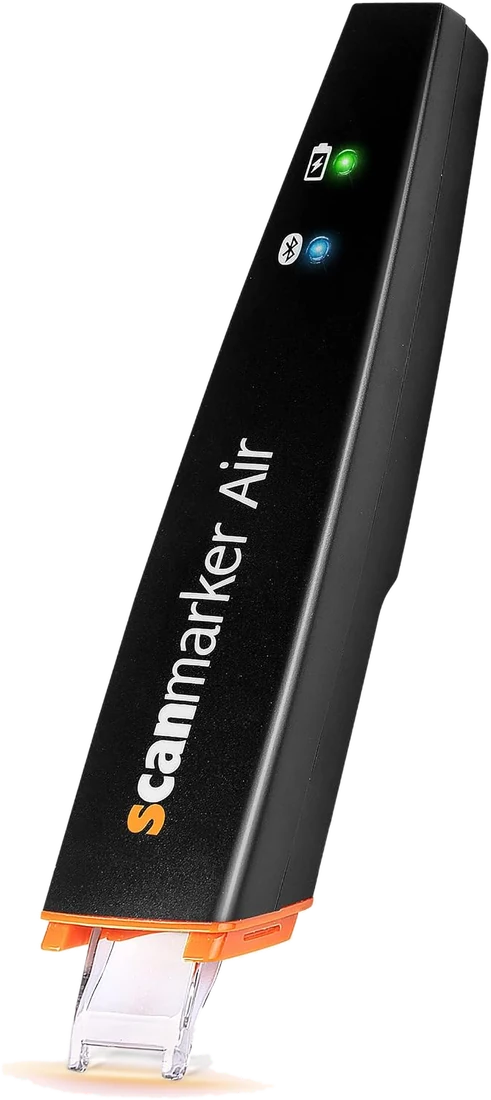 Scanmarker AirConnected (Bluetooth)View details →
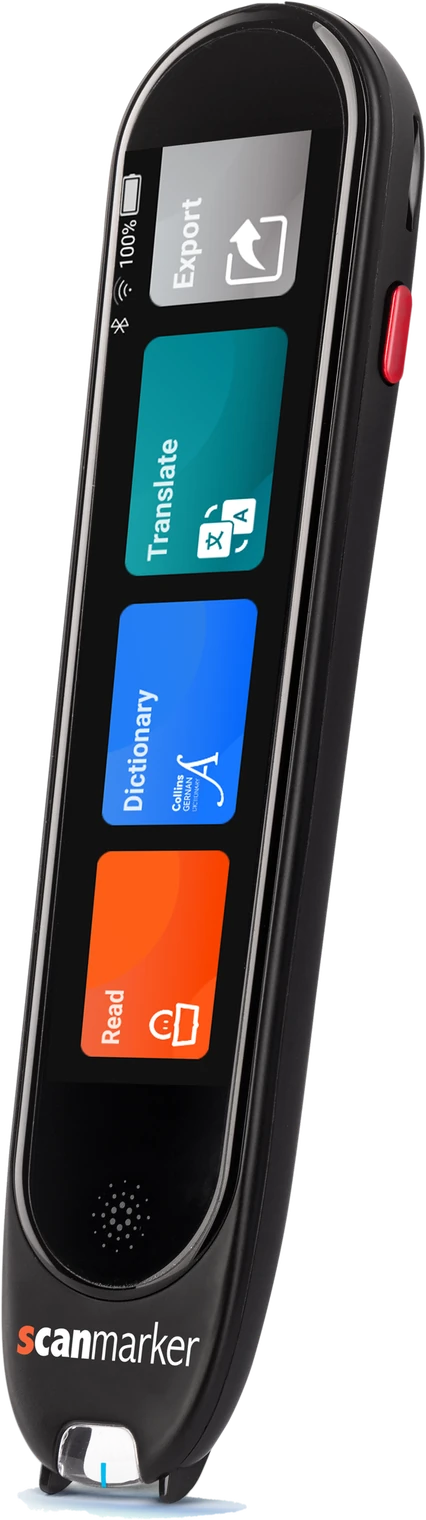 Scanmarker ProStandalone touchscreenView details →
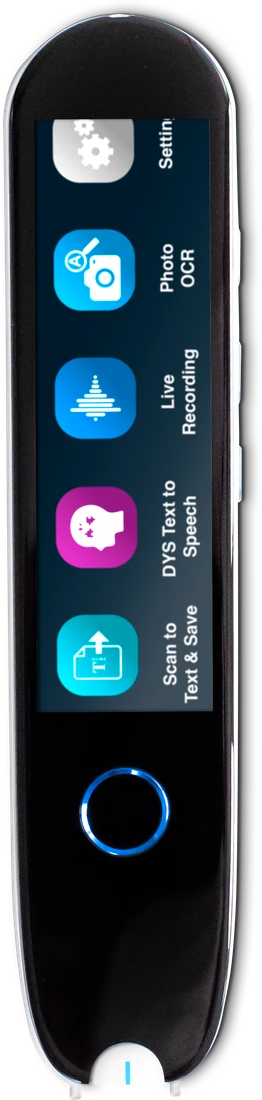 IRISPen Reader 8Standalone touchscreenView details →
Frequently asked questions
Why does my pen scanner frequently miss the first letter of a line?
This happens when you press the scanning tip down directly on top of the first character. The optical sensor needs roughly 5 millimeters of white margin to measure ambient paper contrast and calibrate line tracking before reading ink.
Can left-handed users achieve the same scanning accuracy as right-handed users?
Generally yes. Many pens and apps offer a left-handed or orientation setting, and most can be used in either hand. Check your model's settings or manual.
How should I clean the optical tip if dust accumulates inside?
Gently blow compressed air into the transparent optical guide or use a clean, dry microfiber lens cloth. Never insert sharp metal objects or use liquid solvents that could scratch the internal optical lens.
Why does the pen scan numbers as similar-looking letters (e.g., "0" as "O" or "1" as "l")?
Standard OCR engines prioritize natural language dictionaries and assume text strings are words. To scan pure numbers, use a numbers or digits mode if your pen's software has one, and check the result against the page.
What is the best angle to hold a pen scanner?
Hold the pen at roughly 60 to 80 degrees to the page so both guide points rest flat on the paper. Too low and the lens lifts off the page. Too upright and the pen can skip. Small adjustments often fix blur or missing letters.
Why does my pen scanner skip words?
Skipped words usually come from scanning too fast, lifting the pen slightly or crossing a glossy or creased part of the page. Slow down to a steady highlighter pace, flatten the page and keep both guide points touching the paper through the whole line.
Does lighting affect pen scanner accuracy?
Yes. Dim light makes text low in contrast, while strong overhead light can reflect off glossy paper into the sensor. Use even, moderate light and tilt the page slightly away from direct lamps. Standalone pens and connected pens are affected in the same way.
Why does my Bluetooth pen scanner keep disconnecting?
Drop-outs come from a low battery, interference from other wireless devices, power saving settings or a bad pairing. Charge the pen, move away from other devices, remove and re-pair it, or use a USB connection if your pen supports one.