How to Scan Directly into Google Docs, Word, Excel & Notion with an OCR Pen
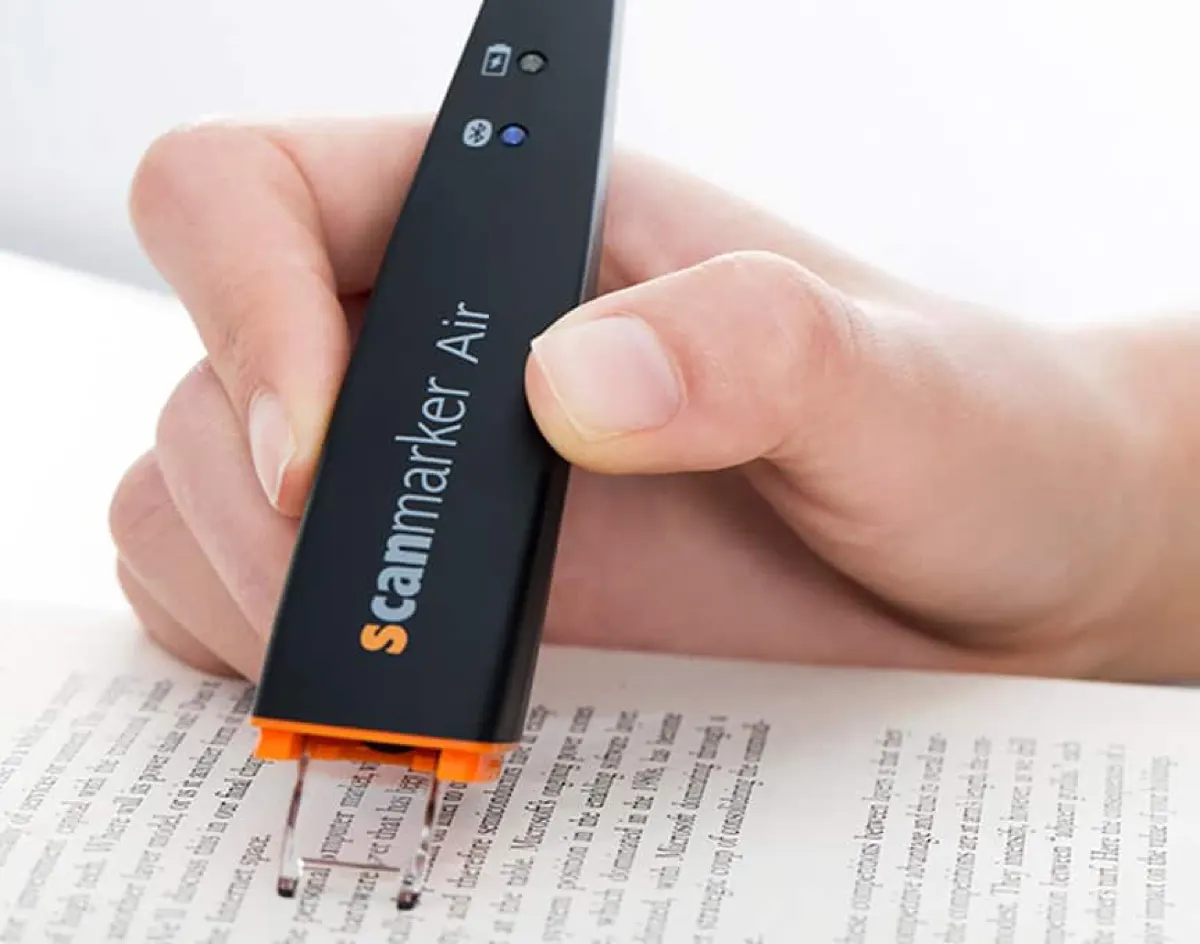
Short answer: To scan directly into Google Docs, Word, or Excel, pair a connected OCR pen like Scanmarker Air via Bluetooth or USB. The scanner emulates a keyboard, instantly typing recognized text at your cursor position in any desktop software or web browser without manual retyping.
Key takeaways
- A connected OCR pen types scanned text wherever your cursor is, so it works with Google Docs, Word, Excel, Google Sheets and Notion without extra plugins.
- You need a connected (app-required) pen such as Scanmarker Air, a supported computer or phone, and a text box to click into.
- Choose what happens after each scan, such as a space, a new line or a Tab, in the pen's companion app.
- Start scanning on blank paper just before the first letter and glide at a steady speed.
- Standalone reading pens read aloud on their own and are a different tool. Check how your model exports text before relying on it for typing into documents.
What do you need to scan into Google Docs or Word?
You need a connected OCR pen, a computer or phone it supports, and an open document with the cursor in place. Nothing else is required in most cases.
- A connected pen: Scanmarker Air connects by Bluetooth or USB and works with Windows, Mac, iOS and Android. PenPower WorldPenScan Wi-Fi and C-Pen Connect are other connected options.
- A supported device: check your operating system and browser against the product page.
- The companion software or web app: install or open it so you can choose language and settings.
- A document: a blank or existing file in Google Docs, Word, Excel or Notion.
New to these devices? Start with what a pen scanner is, or compare options in the pen scanner buying guide.
The Digital Highlighter: How Keyboard Emulation (HID) Works
A connected OCR pen—such as the Scanmarker Air—is engineered to function as an ultra-high-speed human interface device (HID keyboard). When you glide the optical tip over a printed line of text, the onboard image processor digitizes the characters and streams them directly to your computer at your active cursor position.
Because the operating system interprets the pen scanner as a standard physical keyboard, it requires zero proprietary plugins, custom browser extensions, or complex API integrations. If you can click your mouse into a text box, you can scan directly into it.
Step-by-Step Setup: Scanning into Google Docs & Microsoft Word
Scanning printed quotes from textbooks, journals, or physical paper documents into word processors takes less than two minutes to configure:
1. Connect Hardware: Pair your Scanmarker Air via Bluetooth (or its included USB dongle on Windows).
2. Launch Companion Utility: Open the lightweight desktop driver (macOS or Windows) or open the web scanning interface in Google Chrome.
3. Select Delimiter Mode: Choose "Append Space" for continuous sentence-by-sentence scanning, or "Append Return" if you want each scanned line to appear on a new paragraph.
4. Position Cursor: Open your document in Google Docs or Microsoft Word and click precisely where you want the extracted text to begin.
5. Scan Smoothly: Place the transparent guide tip 1/4-inch before the first character and glide steadily across the line at approximately 3 to 5 inches per second.
Pro Productivity Tip: If your pen's software has an option to add a space after each scan (often called auto-space), turn it on. You can then scan sentence after sentence without touching your laptop spacebar.
How do you scan into Google Docs step by step?
To scan into Google Docs, connect your pen, open a document in Chrome, click where you want the text and scan a line. The text appears at your cursor.
- Charge the pen and turn it on.
- Pair it with your computer or phone by Bluetooth, or plug in the USB dongle if your pen has one.
- Open the pen's companion app or web app and choose the scan language.
- Open your document at docs.google.com and click the spot for the new text.
- Place the pen tip on blank paper just before the first letter.
- Glide steadily along the line and lift the pen after the last letter.
- Check the typed text, then move on to the next line.
If characters go missing, read our pen scanner troubleshooting guide.
How do you scan into Microsoft Word and Excel?
Scanning into Word or Excel follows the same pattern: click into the document or cell, then scan. In Word the text appears at the cursor, and in Excel it fills the selected cell.
- Pair the pen and open its companion app.
- For Word, open your file and click where the text should go.
- For Excel, click the first cell you want to fill.
- In the companion app, set what happens after each scan (a space, a new line or a Tab).
- Scan the first piece of text and check where the cursor moves.
- Continue scanning, correcting any mistakes as you go.
For tables, scan one cell's text at a time. Pens read line by line, so they are best for short entries such as part numbers or names. See scanning pens for work for office workflows.
Tab-Delimiter Scanning: Populating Microsoft Excel & Google Sheets
Data entry from physical paper invoices, financial statements, catalog part numbers, and laboratory records is notorious for typing fatigue and transcription errors. Pen scanners streamline this process through "Tab-Delimiter Mode."
When you configure the pen’s trailing action to "Tab Keystroke" instead of "Enter" or "Space," each scan inputs the text into the active spreadsheet cell and immediately advances the cursor to the adjacent column. You can populate dense multi-column tables in Excel or Google Sheets in a fraction of the time required for manual 10-key typing.
Building a Second Brain: Workflows for Notion, Obsidian & Roam
Knowledge workers, academic researchers, and avid non-fiction readers frequently struggle with physical book notes getting trapped in paper margins. A digital scanning pen is the ultimate tool for populating digital knowledge bases:
Notion Literature Databases: Scan core thesis statements directly into Notion block quotes, instantly tagging the entry with author, page number, and conceptual tags.
Obsidian Markdown Vaults: Scan passages into local Markdown files, surrounding key conceptual phrases with [[wikilinks]] for bidirectional knowledge graph connection.
Zotero & Mendeley Research Annotations: Scan direct excerpts into your citation manager notes field while reading physical library books, preserving quotation fidelity for scholarly publishing.
Software Configuration Matrix: Optimal Keystroke & Delimiter Settings
Configure your pen scanner driver for these optimal application settings:
| Application | Recommended Delimiter | Scan Speed Setting | Workflow Goal |
|---|---|---|---|
| Google Docs | Append Single Space | Medium-High | Continuous prose note-taking & textbook summaries |
| Microsoft Word | Append Single Space / Enter | Medium-High | Scholarly essays, manuscripts & quotation capture |
| Microsoft Excel | Append Tab Keystroke | Medium | Numerical data entry, invoice indexing & inventory tables |
| Google Sheets | Append Tab / Enter | Medium | Financial reconciliation & survey form digitization |
| Notion | Append Return (New Block) | Medium | Block quote capture, book notes & database records |
| Obsidian / Roam | Append Space + [[Link]] | Medium | Bidirectional note synthesis & literature slip-box notes |
Troubleshooting: Symptoms, Causes and Fixes
Most problems come from the connection, the cursor or the settings. Use this table to find your issue quickly.
| Symptom | Likely cause | Fix |
|---|---|---|
| Nothing appears in the document | Pen not paired or cursor not in a text box | Check pairing in the companion app, then click into the document and scan again |
| Text appears in the wrong window | Another window had focus | Click the target document first, then scan |
| Words run together | No space is added after each scan | Choose a space option in the companion app |
| Each scan starts a new paragraph | New-line option is on | Switch to a space option for continuous prose |
| Excel text stays in one cell | Tab option is not selected | Select the Tab option so the cursor moves to the next column |
| Numbers appear as letters | The pen read digits as similar letters | Use a numbers-focused setting if your pen offers one, and rescan slowly |
| Bluetooth drops out mid-scan | Interference or low battery | Charge the pen, re-pair it or use USB |
| Letters missing at the start of lines | Scan began on top of the first letter | Begin 1/4 inch before the first letter |
What are the best habits for accurate scans into documents?
Good habits are scanning one sentence at a time, checking the result before moving on, and keeping the same speed and angle throughout.
- Scan one sentence or one cell at a time rather than long lines.
- Keep the cursor visible so you can see each result.
- Flatten the page, especially near the book spine.
- Use the same scan language as the text.
- Proofread quotes against the page before you submit work. OCR is accurate but not perfect.
Our angle and alignment tips explain the best way to hold the pen.
Which pens and workflows suit students and researchers?
Students and researchers who collect quotes for essays usually choose a connected OCR pen, while those who want read-aloud choose a standalone pen. A connected pen sends quotes straight into a document, saving retyping.
Many researchers also add the page number and source straight after each quote so citations stay accurate. See pen scanners for students and pen scanners for researchers for study workflows, or browse the OCR pen category.
Productivity Software & Hardware Interlinking Hub
Expand your digital reading and note-taking ecosystem with these complementary resources:
- PenScanner.co — Digital highlighter productivity workflows, app setups, and workflow comparisons.
- Pen Scanner Journal — Advanced guides on digital note-taking, markdown workflows, and research ergonomics.
- Scanning Pen for Work — How legal, medical, and finance professionals use OCR pens for daily data workflows.
- OCR Pens Guide — Technical comparison of optical sensors, accuracy, and character recognition engines.
- Pen Scanners for Researchers — Archival research, citation management, and library book extraction.
Pens that scan into Docs and Word
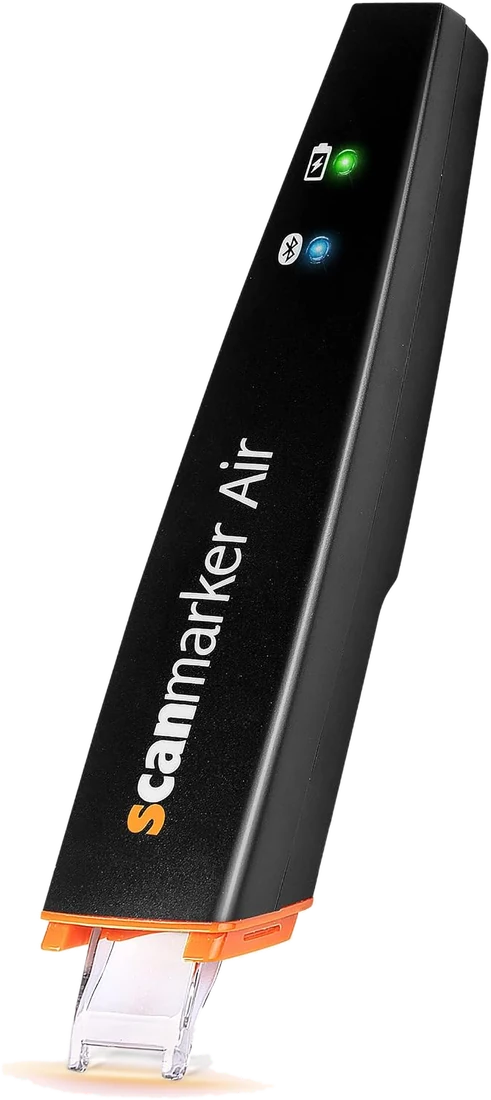 Scanmarker AirConnected (Bluetooth)View details →
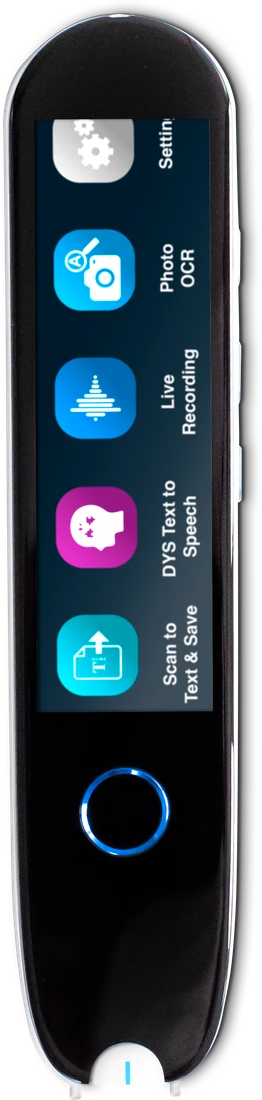 IRISPen Reader 8Standalone touchscreenView details →
Note that IRISPen Reader 8 is a standalone touchscreen pen that works fully offline, so it is a reading and scanning device rather than a keyboard-style connected pen. Check its product page for how it exports text before using it for typing into documents. Scanmarker Air is the connected option for scanning straight into documents.
Frequently asked questions
Do I need special browser extensions to scan into Google Docs?
No. Connected pen scanners like the Scanmarker Air emulate a physical keyboard at the operating system level. Google Docs receives character inputs exactly as if you were typing on your computer keyboard.
Can I scan numerical figures and currency into Excel cells?
Often. If your pen's software offers a numbers or digits mode, select it before scanning. Otherwise scan slowly in good light and check digits and currency symbols against the page.
How fast does scanned text appear inside Word or Docs?
Text usually appears within a moment of finishing the scan. Speed depends on your pen, its connection and the app.
Can I use a pen scanner across multiple monitors and windows?
Yes. The text will always populate in whichever window and text field currently holds your active mouse cursor focus.
Which pen scanner works best with Google Docs and Word?
A connected OCR pen such as Scanmarker Air is the usual choice, because it types text at your cursor in any app. Standalone reading pens focus on reading aloud instead. Check the product page for supported computers and phones before you buy.
Can I scan into Google Docs on a phone or tablet?
Often yes, if the pen supports your phone or tablet. Scanmarker Air lists support for iOS and Android as well as Windows and Mac. You may need the pen's companion app and a text field open in the document app.
Can a pen scanner scan a whole table into Excel?
Not in one pass. A pen reads one line at a time, so you scan each cell's text separately. Set the pen to move to the next column after each scan, which is much faster than typing and works well for part numbers, names and short entries.
Do I need to be online to scan into a document?
It depends on the pen and the app. A connected pen sends text to your device, and Google Docs needs an internet connection to save your document. Word can work offline. Check the pen's product page for any online requirement.
Why is the first letter missing when I scan into Word?
You probably started the scan directly on the first letter. Begin on blank paper about 1/4 inch before it, so the sensor can adjust to the paper before the text begins. Keep the pen angle steady and glide smoothly through the whole line.