The Scanning Pen That Speeds Up Your Workday
Short answer: A scanning pen types a printed line straight into the app your cursor is in (Word, Excel, Google Docs, email) as you drag it across the page. For most office work the Scanmarker Air is the pick; choose a standalone pen like Scanmarker Pro only if you also want text read aloud or translated without a laptop.
- A scanning pen (OCR pen or digital highlighter) types printed text into the app on your screen, so you skip retyping quotes, figures and clauses.
- For most office work, a connected pen such as the Scanmarker Air is the simplest choice; it sits in the $100-199 price band in our catalogue.
- Choose a standalone pen like Scanmarker Pro only if you also want read-aloud or translation without a laptop.
- Pens read printed text, not handwriting, and every scan of a number, name or clause needs a quick proofread.
- This guide is about productivity. If you need a pen as an assistive or accessibility tool, see assistive reading pens in higher education and the workplace.
What actually makes this a productivity tool
Retyping a printed paragraph, a contract clause or a page from a reference book is dead time. A connected scanning pen removes it: drag the tip along the line and the text appears wherever your cursor already is, without leaving the app you're working in.
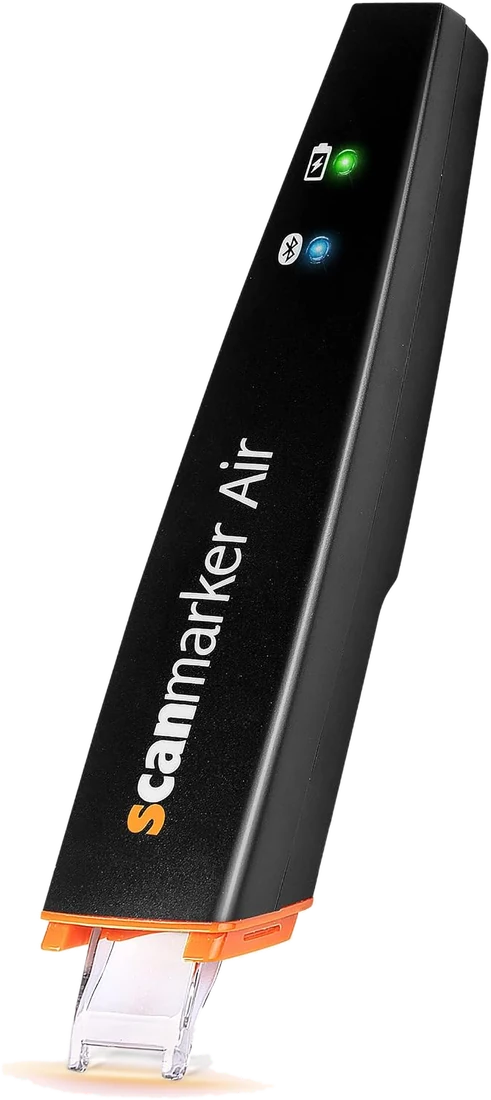
Scanmarker Air pairs over Bluetooth and types into whatever app has focus: Word, Excel, Google Docs, a browser form or an email draft. If you can place your cursor in a field, the pen can type into it.
The time saved comes from skipping manual transcription. For anyone regularly pulling quotes from printed material or working from paper reference documents, that adds up over a week.
The work-ready models
If the job is "get this text into my document faster", a connected pen is the simpler tool. If you also want text read aloud or translated without a computer, for example reviewing a contract in a language you don't read fluently, a standalone pen adds that.
| Model | Connection | Best for | Buy |
|---|---|---|---|
| Scanmarker Air | Bluetooth to laptop, desktop, phone | The everyday pick: types scanned text into any app in focus | See on Amazon |
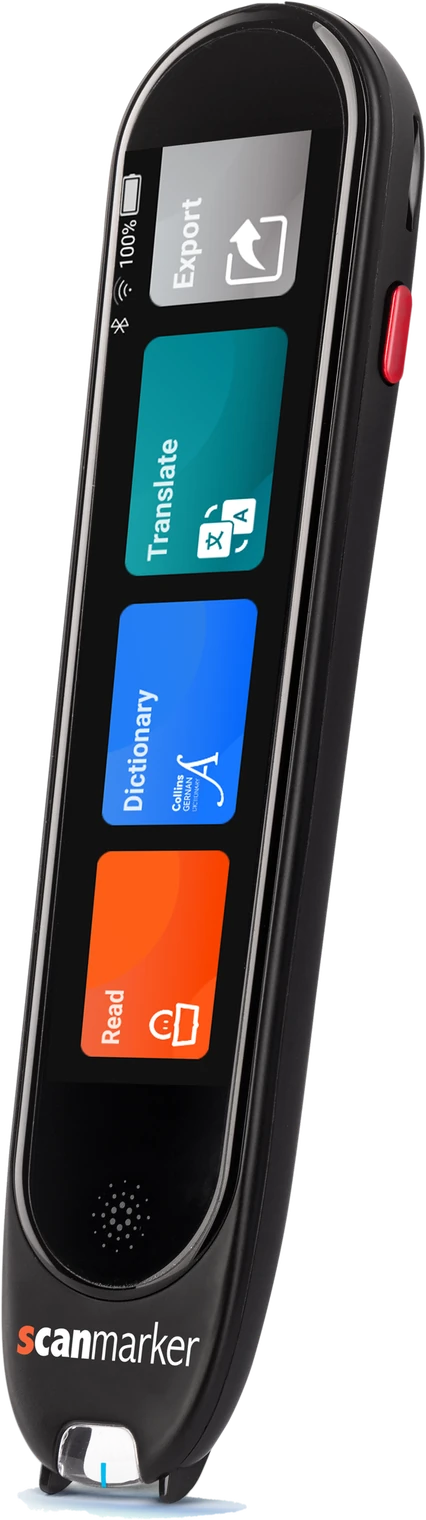
| Scanmarker Pro | Standalone touchscreen | Reading aloud and translating printed documents with no laptop (offline reading in several languages) | See on Amazon |
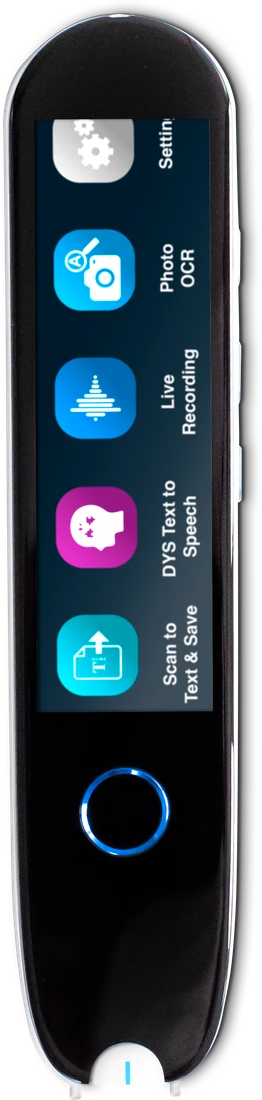
| IRISPen Reader 8 | Standalone, fully offline | Confidential documents: OCR runs on the pen with no Wi-Fi or cloud, text saved for export | See on Amazon |
Works on a managed or locked-down machine
If IT blocks new Bluetooth pairings on your work laptop, ask whether the Air's included USB dongle is allowed, or use a standalone pen such as IRISPen Reader 8 that saves scanned text on the device for export later. Scanmarker also sells a wired USB version directly; it is not listed on Amazon US.
Which pen suits which office job?
Pick the pen by where the scanned text needs to end up. A connected pen suits live document work, a desk-bound wired pen suits repeated data entry, and an offline standalone pen suits sensitive material.
| Office job | Pen type | Examples | Watch out for |
|---|---|---|---|
| Quotes and clauses into Word or Docs | Connected (Bluetooth) | Scanmarker Air, C-Pen Connect | Needs a paired device and the pen's app running |
| Figures from printed invoices into a spreadsheet | Connected, finance-friendly | PenPower WorldPenScan X | Stock can vary; check the product page. Proofread every number |
| Fixed desk, repeated data entry | Wired USB pen | C-Pen TS1 (G2) | Desk-bound; not for phones or travel |
| Confidential or regulated documents | Standalone, fully offline | IRISPen Reader 8 | Text is exported later rather than typed live |
| Documents in another language | Standalone with translation | Scanmarker Pro | Offline language list is shorter than the online list |
More options are in the OCR pen category, and the comparison tool lets you filter by connection type and language.
How do you scan into Word, Excel and email step by step?
You scan into any app by pairing the pen, clicking where the text should go, and dragging the pen along the line. The text appears at the cursor as if you had typed it. These steps work the same in Word, Excel, Google Docs, a web form or an email draft.
- Install the pen's desktop or mobile app and pair the pen over Bluetooth, or plug in the dongle.
- Open the document, spreadsheet cell or email draft and click to place the cursor.
- Rest the pen tip flat at the start of the printed line.
- Start the scan as the pen's instructions describe and drag at a steady speed to the end of the line.
- Check the typed text against the page. Correct any misread characters.
- In Excel, press Tab or Enter as you normally would to move to the next cell, then scan the next value.
- Save the file as usual.
Our full walkthrough is in the guide to scanning into Google Docs and Word, linked in the related guides below.
How much time does a scanning pen save at work?
A scanning pen saves the time you would spend retyping, and it saves more the longer the passages are and the more often you do it. A printed line takes about a second to scan, so quoting a few sentences is much faster than typing them. For one-off tasks the saving is small, and for repeated quoting or data entry it adds up.
Pens save the least when most of your material is digital already, and when you need entire pages with layout intact. In those cases a phone scan or a document scanner is the better tool; see pen scanner vs. phone in the related guides below, and scanning solutions for business.
Is a scanning pen safe for confidential work documents?
It depends on the pen and your organization's rules. A fully offline pen such as IRISPen Reader 8 runs OCR on the device with no Wi-Fi or cloud, which suits confidential documents. Connected pens send text to your computer or phone, and features such as translation may use online services, so check what your pen does with data.
Before scanning contracts, client files or regulated records, ask your IT or information security team whether the device is allowed, and follow your data-handling policy. This guide is not legal or compliance advice.
What should you check before buying a scanning pen for work?
- Confirm your computer or phone is supported (Windows, Mac, iOS, Android and, for some models, Chromebook).
- Ask IT whether Bluetooth pairing, USB dongles and app installs are allowed on your work device.
- Decide whether you need typed text, read-aloud, translation, or all three.
- Check whether documents must stay offline.
- Check the languages you scan, because lists differ by model.
- Compare the price band against how often you will use it, and check whether your employer will reimburse it.
The pen scanner buying guide expands on features, and how we evaluate pen scanners explains our approach.
Common mistakes when using a scanning pen at work
- Scanning into the wrong window. Click into the target cell or field first.
- Trusting numbers without checking. A single misread digit in an invoice matters.
- Using it on handwriting. Pens are built for printed text.
- Skipping IT approval. Locked-down laptops may block pairing.
- Buying the wrong type. A connected pen does not read aloud on its own. Read reading pen vs. OCR pen to avoid this.
Scanning pens for work versus assistive reading pens
If your goal is speed and less typing, you are in the right guide. If your goal is reducing reading strain because of dyslexia, ADHD, low vision or a second-language load, see our guide to assistive reading pens in higher education and the workplace, which covers accommodations and approval, and pen scanners for dyslexia. New to the category? Start with what is a pen scanner.
Real workflows this solves
Digitizing quotes from a printed report into a research doc. Pulling figures from a printed invoice into a spreadsheet. Capturing a passage from a book or magazine into notes. Handwritten forms are not a good fit: like all OCR tools, these pens are built for printed text.
See it in the full workflow
For the mechanics behind it, see how pen scanning works. If you're deciding between a pen and your phone camera, see pen scanner vs. phone. To scan straight into documents, see how to scan into Google Docs and Word.
 Scanmarker AirConnected (Bluetooth)View details →
 Scanmarker ProStandalone touchscreenView details →
 IRISPen Reader 8Standalone touchscreenView details →
Frequently asked questions
Does a scanning pen for work need special software?
Scanmarker Air uses the Scanmarker desktop or mobile app to connect, then types scanned text into whatever app has your cursor. You don't have to work inside the Scanmarker app.
Which scanning pen is best for office work?
Scanmarker Air for scanning into Word, Excel and Docs. Scanmarker Pro if you want to read or translate documents without a laptop. IRISPen Reader 8 if documents must never touch Wi-Fi or the cloud.
Can it scan handwriting?
No. Like all OCR-based tools, these pens are built for printed text; handwriting recognition is unreliable across the category.
How fast is scanning compared to typing?
A printed line takes about a second to scan, so for any block of text longer than a sentence or two it is much faster than retyping. Steady, level strokes give the best results.
Can a scanning pen type into Excel?
Yes. A connected pen such as Scanmarker Air types scanned text into the cell that is active, as if you typed it. Click the cell, scan the value, then move to the next cell as you normally would. Always check numbers against the printed page.
Do scanning pens work on Windows, Mac and Chromebook?
Scanmarker Air works with Windows, Mac, iOS, Android and Chromebook through the Scanmarker apps and web app. Other pens have different support lists, so check the product page for your operating system before buying.
What is the difference between a scanning pen for work and a reading pen?
A scanning pen for work types printed text into documents on a computer or phone. A reading pen is standalone and reads text aloud, often with a dictionary or translation. Many offices want the first, while accessibility needs often point to the second.
Will my employer allow a scanning pen on a work laptop?
It depends on your IT policy. Some organizations block new Bluetooth pairings or software installs, while a USB dongle or a standalone offline pen may be allowed. Ask your IT team before you buy, and follow your data-handling rules for confidential documents.
Can I use a scanning pen as a workplace accommodation?
Possibly. Reading pens are sometimes provided as accommodations for employees with dyslexia, ADHD or other reading barriers. The process depends on your country and employer, so contact HR and read our guide to assistive reading pens in higher education and the workplace.